Aster v0.1.0 · macOS

Aster — The agentic development environment for AI researchers.

Run experiments with coding agents, keep the evidence of every Run, and write the paper beside it — one project, one window.

Apple Silicon · macOS 12 or later · v0.1.0

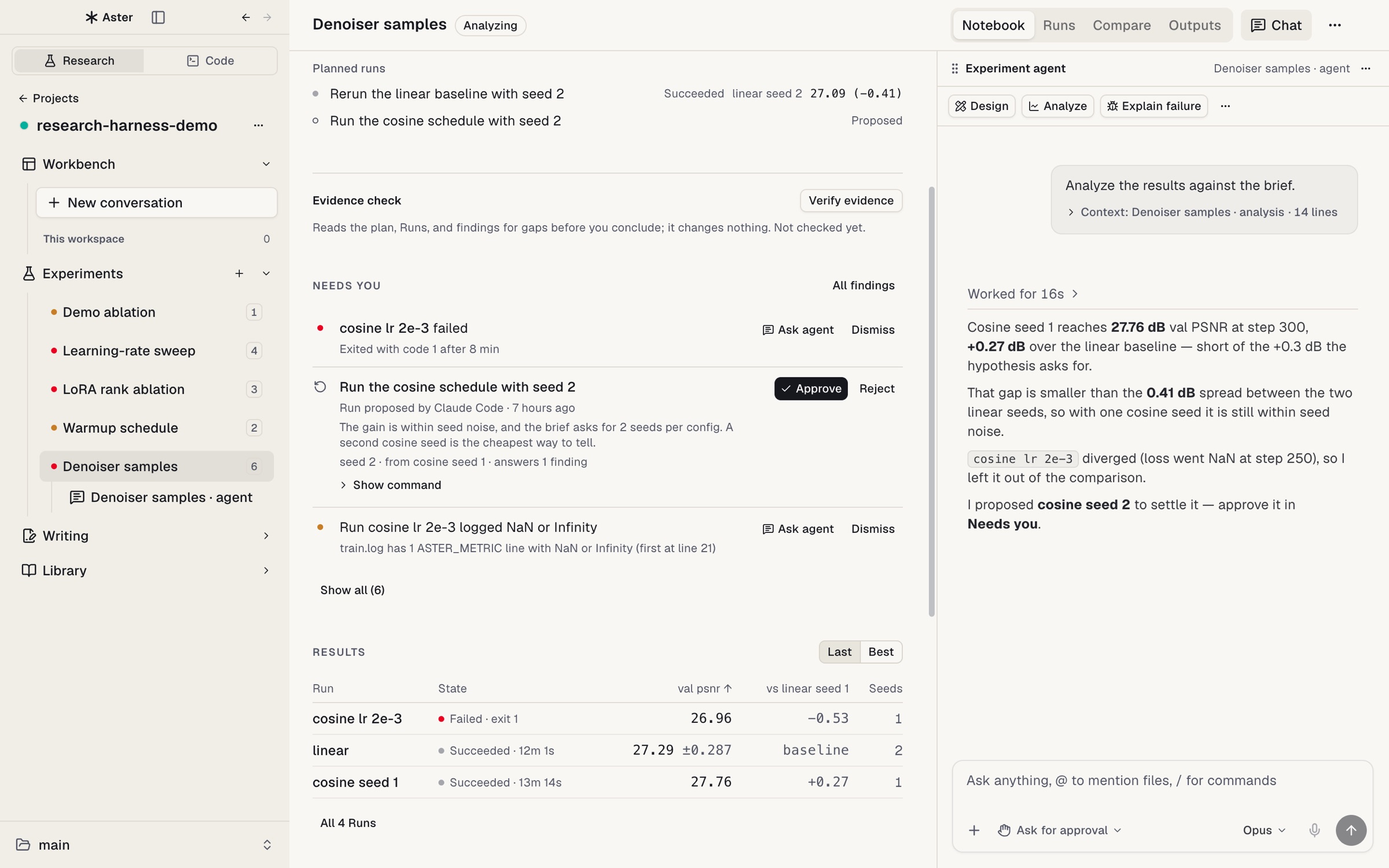
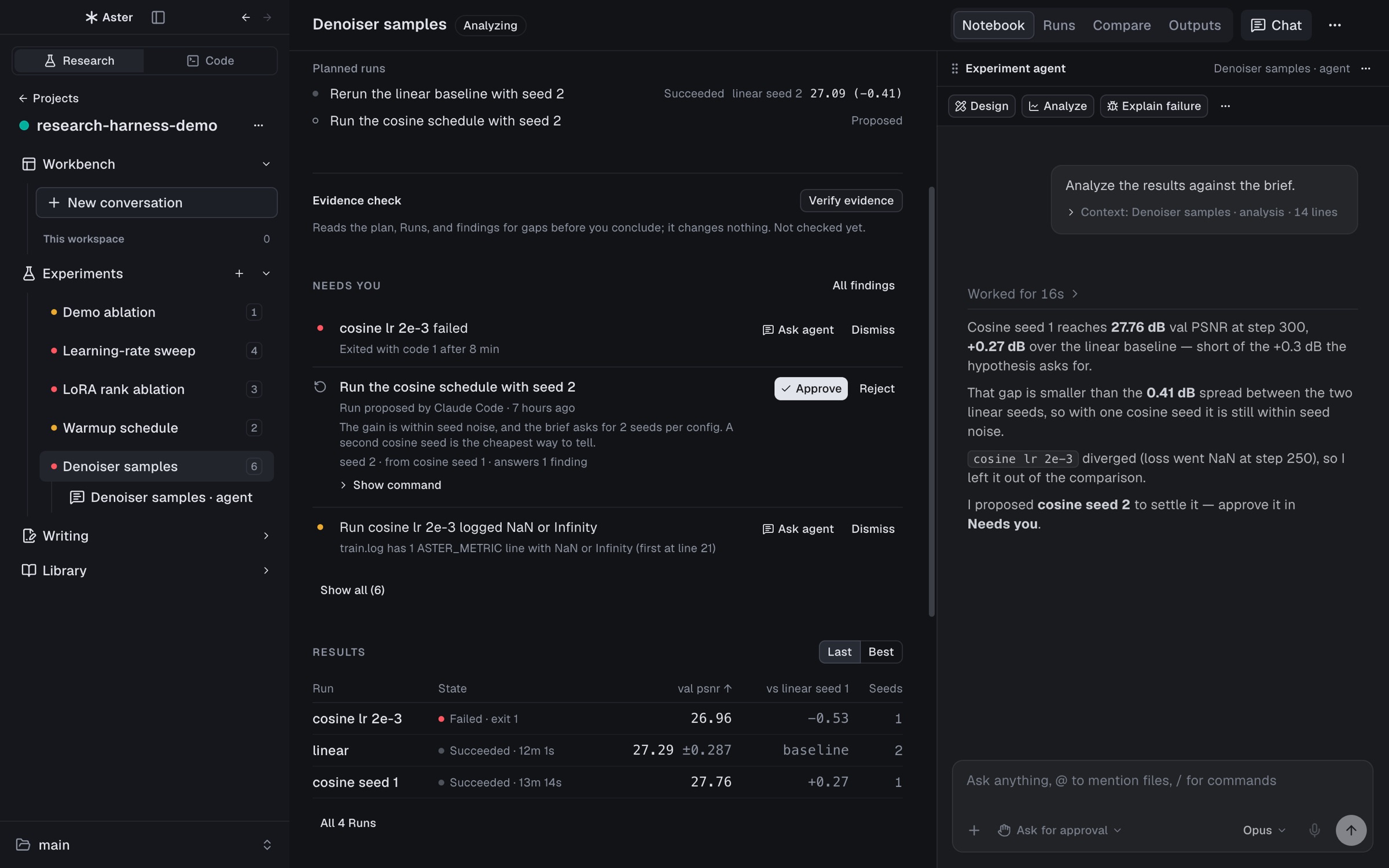
Aster with a research project open: the Experiment notebook in the middle, with planned Runs, a Needs you list and a results table, and the Experiment agent docked on the right Aster with a research project open: the Experiment notebook in the middle, with planned Runs, a Needs you list and a results table, and the Experiment agent docked on the right

Why Aster

The research project is the unit of work.

A coding environment treats the repository as the unit of work. Aster treats the research project as the unit: the conversations that start the work, the Experiments and Runs that produce results, the paper that reports them, the papers it cites, the GPUs it runs on, and the deadline it is aiming for. Claude Code and Codex do the work in your terminal as usual; Aster records what they actually ran and puts the evidence next to every number they report.

  • Conversation first

    Start from a Claude Code or Codex chat. An Experiment groups the results afterwards; it is not a form to fill in before you can talk to an agent.

  • Evidence, not assertions

    Each Run records what actually ran, each number in the paper points to the Run behind it, and only you approve what runs next.

  • Your machines, your files

    No Aster account or hosted service. Agents and research records stay on your computer and the hosts you connect, in plain files inside the project.

How it works

Agents do the work. Aster keeps the record.

Your agent launches every experiment through a small research harness. The harness writes what it observed into .aster/ in your project, and Aster reads those records live.

You
ask in a chat
Claude Code / Codex in Aster
run exec · claim add · proposal add · loop note
Research harness node cli.mjs
runs your command, writes what it observed
.aster/ in your project run.json · metrics.jsonl · train.log · code.patch · claims.json · loop.jsonl
read live
Aster Notebook · Runs · Compare · Writing · Claims
Back to the agent: when a watch fires (ended, NaN, stall) or you approve or reject a proposal, Aster wakes the agent. You decide in Aster; agents propose.
  1. Ask

    Describe the experiment in a Workbench chat or the Experiment agent pane. Aster attaches the project context — Runs, metrics, open findings — as a compact chip, not a wall of text.

  2. Run through the harness

    The agent launches training with run exec --experiment <slug> -- python train.py …. The harness runs only that command and records the launch commit, a patch of uncommitted changes, host, argv, and agent session.

  3. Record, don’t claim

    Metric lines your code prints (ASTER_METRIC {…}) stream into metrics.jsonl; stdout and stderr go to train.log; the exit code decides the Run’s state.

  4. Watch

    aster research watch registers what the agent is waiting for. Aster checks local Runs every 15 s and SSH Runs every 60 s and wakes the agent when one fires, so nobody polls.

  5. Decide

    The agent records findings with evidence — a metric, log lines, a file — and proposes the next Run. The proposal appears under Needs you in the notebook; you approve or reject it.

  6. Write

    When a number goes into paper/main.tex, the agent records a claim that ties it to a Run’s metric. Writing shows each claim as verified, stale, mismatched, or missing evidence.

Plain files in your project

Everything lives in the project as JSON, JSONL, and logs you can read, diff, and commit.

Project layout
my-project/
  paper/main.tex  paper/references.bib
  .aster/
    project.json          path map of the project
    claims.json           manuscript numbers → Run evidence
    experiments/<slug>/
      experiment.json     question, hypothesis, metric, baseline, seeds
      loop.jsonl          hypothesis → Run → result → decision
      proposals.jsonl     next-Run proposals and your decisions
      quality.jsonl       findings with evidence
      analysis.jsonl      analyses and the Runs they used
      runs/<id>/
        run.json  metrics.jsonl  train.log  code.patch
        config.json  media.jsonl  artifacts/
    library/papers/

Experiments

Run it, compare it, decide what runs next.

Every Experiment has a notebook, its Runs, and an agent beside it. Agents propose; you decide what runs.

Experiment notebook

Each Experiment opens on a notebook: the plan (question, metric, baseline, seeds), Needs you (failed Runs, proposals, and findings waiting on a decision), results with mean ± spread per configuration, analyses, and your conclusion.

The Experiment agent is docked beside it. Ask it to design, analyze, explain a failure, or propose the next Run.
Analyze, then approve. Analyze starts the Experiment agent, which reads the Experiment and its checks and answers against the plan: +0.27 dB, inside seed noise. Approve on the proposed Run in Needs you marks it approved in the plan.

Runs and Compare

Live metric curves, the log, config, code patch, and media for every Run. Attach existing JSONL or CSV results, link a SLURM job, or let agents register Runs that Aster picks up on its own.

Tick 2–6 Runs and Compare lines them up: differences from the baseline at one precision per column, mismatched units or evaluation conditions, config differences, and outputs — text or image — matched by sample ID. Rate samples blind, A/B, and see how your ratings agree with the agent judge.

Notebook to Runs to Compare. Open Runs, pick cosine seed 1, and switch its chart to validation PSNR; hovering reads each step. Compare overlays the selected Runs, with every value at the hovered step.

Research loop

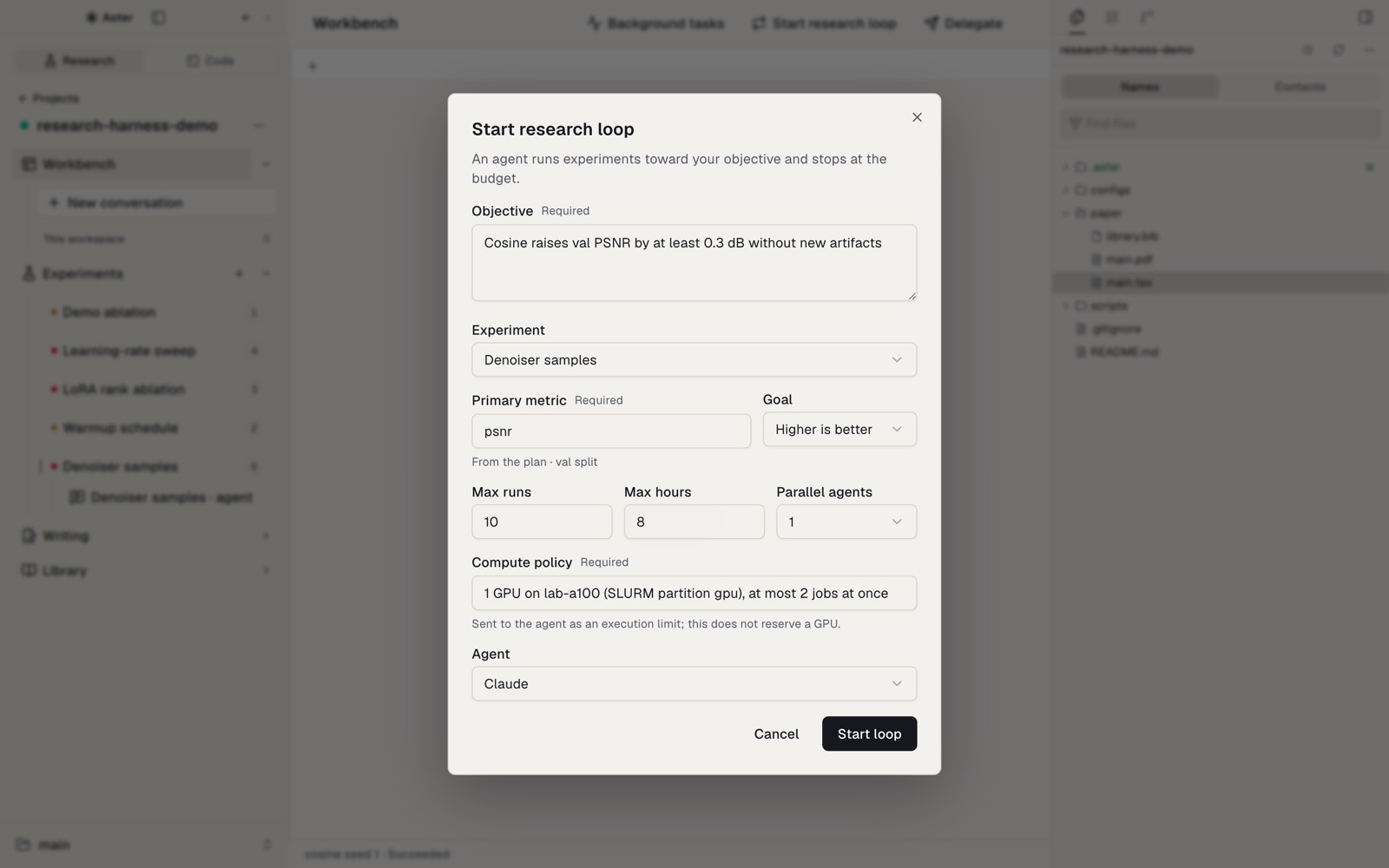
Give an agent an objective, a metric, and a budget of Runs and hours. It writes each hypothesis, Run, result, and decision to the loop ledger and launches only through the harness.

It stops for you before going over budget or changing the evaluation.

Start research loop dialog with an objective, a metric, and a budget Start research loop dialog with an objective, a metric, and a budget

Writing

Write with your results.

The paper sits beside the Runs it reports, and every number stays tied to the Run it came from.

Revise with the Writing agent

The paper sits beside the Runs it reports: TeX source, the PDF compiled with Tectonic, and a Writing agent side by side, with SyncTeX in both directions.

Select text in the TeX source or the PDF and choose Revise. The Writing agent edits only that passage, and Compile PDF shows the result.

Revise with the Writing agent. The abstract is selected in paper/main.tex and sent with “Lead with the result and give the numbers.” The agent reads the file and edits those lines, the source reloads, and Compile PDF shows the new abstract.

Claims

The Claims drawer checks every number in the paper against the Run it cites and marks it verified, stale, mismatched, or missing evidence. It also lists result-like numbers that no Run backs.

When the paper no longer states its Run’s value, Update text fixes it in one click.

Fix a number that no longer matches its Run. The Claims drawer lists one mismatch, one stale claim, and two verified ones. Update text to 85.8% rewrites line 32 to the Run’s value, the claim turns verified, and the recompiled PDF says 85.8%.

Library

Read the papers you build on.

Each project keeps its own papers, with a reading agent that relates them to your manuscript and code.

The project’s papers and PDFs with highlights and notes, arXiv and DOI import, and copyable citations.

Select a passage to highlight it, or choose Explain, Translate, or Ask. The Reading agent answers beside the PDF, and can summarize, critique, or relate the paper to your project.

Explain a passage. A sentence of the abstract is selected in the PDF and Explain sends it to the Reading agent, which answers in the panel. Paper shown: arXiv:2305.08891 (Lin et al.), CC BY-SA 4.0.

Others

Compute, Workbench, and the harness.

The GPUs and deadlines around your projects, the coding workspace, and the CLI your agents use.

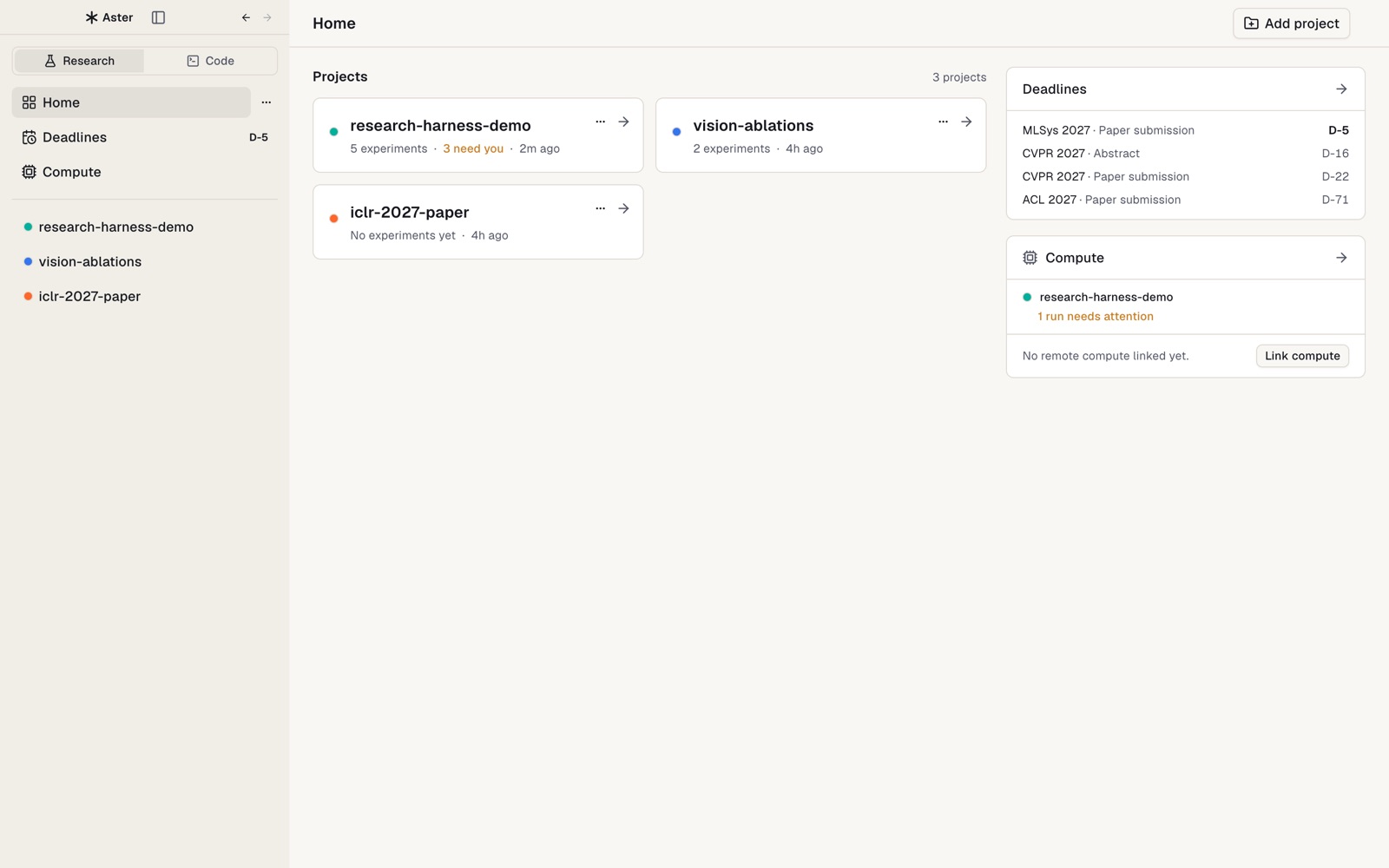
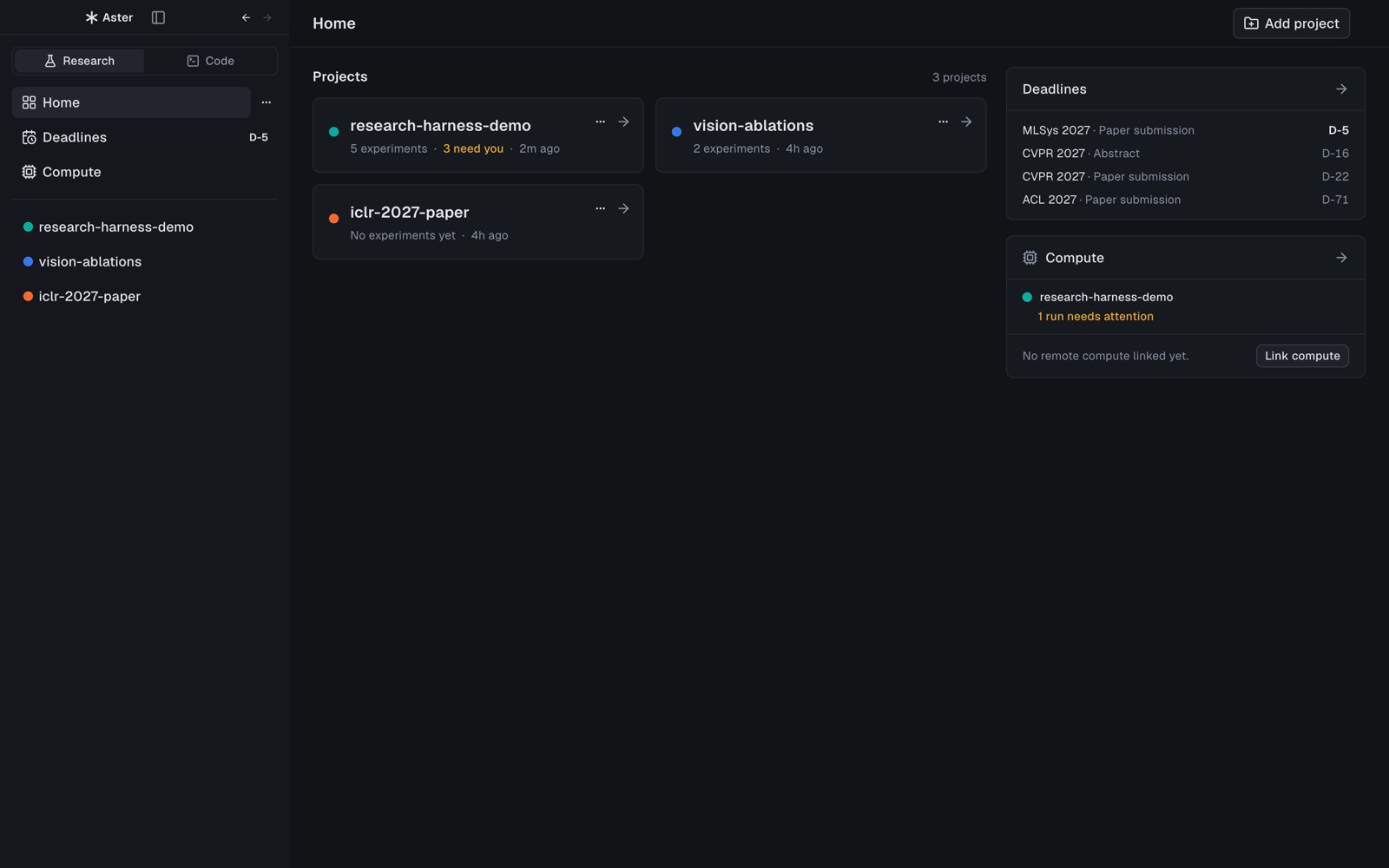
Compute and Deadlines

SSH hosts, GPUs, and SLURM queues across projects, with a GPU budget per host and project: jobs over budget are submitted held and released in priority order.

Conference deadlines from the ccfddl and Hugging Face AI deadlines catalogs, in your time zone.

Aster home with projects, upcoming deadlines, and compute Aster home with projects, upcoming deadlines, and compute

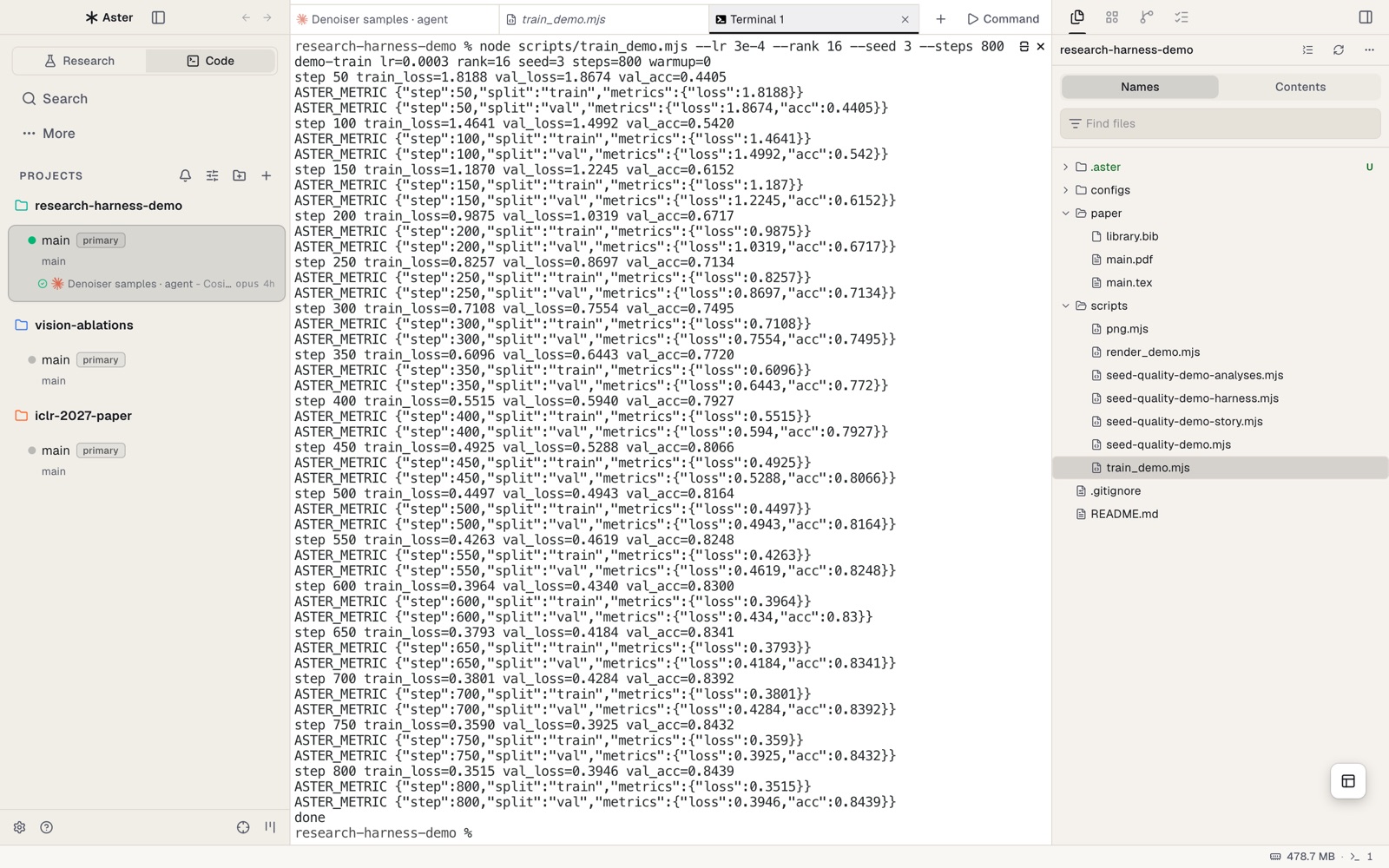
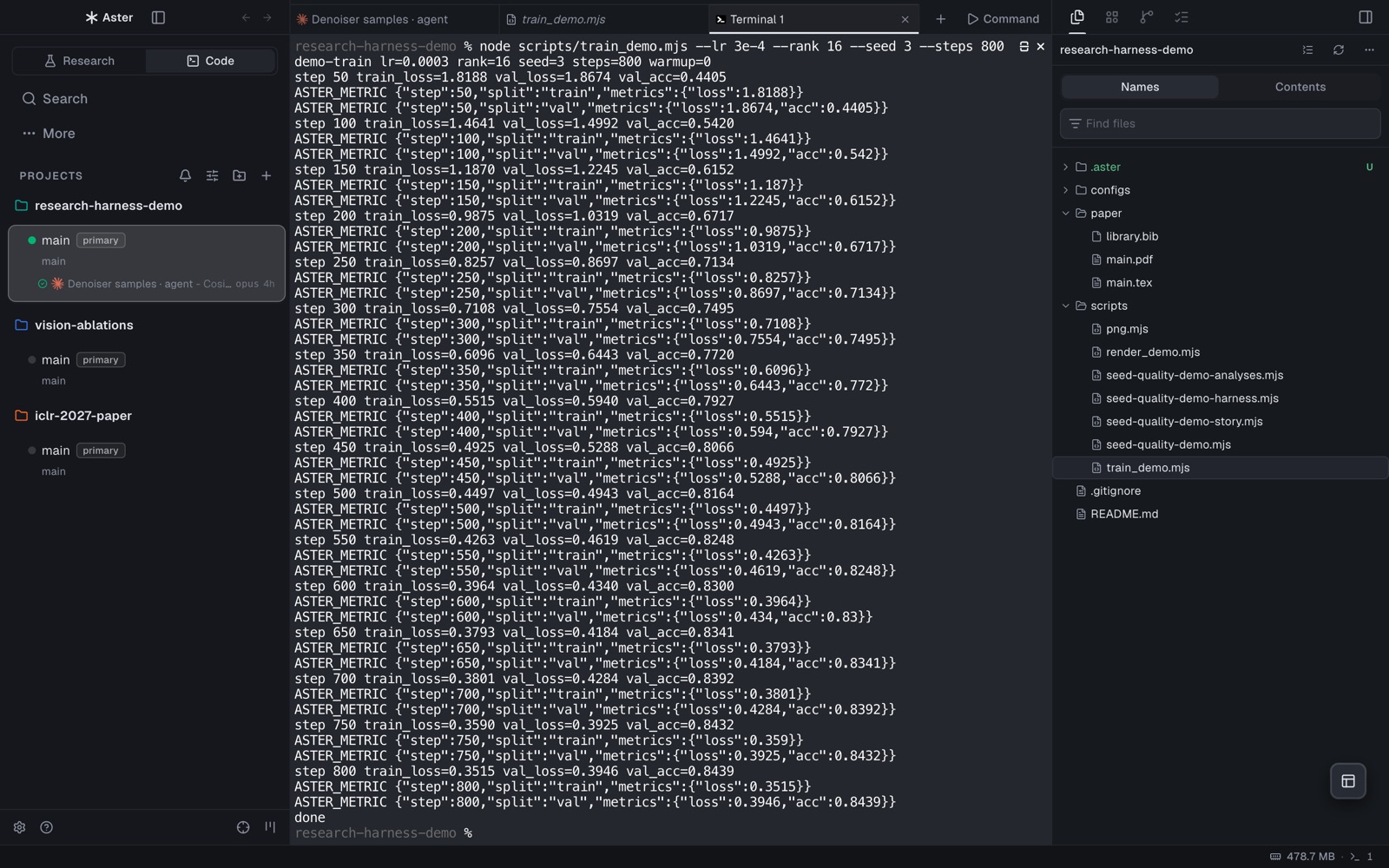
Workbench and Code layout

Chats, terminals, the editor, files, and Git for the project. Switching pages never stops an agent or terminal.

The Research | Code switch flips the sidebar to a worktree-first layout for pure coding work.

Code layout with worktrees in the sidebar, a terminal streaming training metrics, and the file tree Code layout with worktrees in the sidebar, a terminal streaming training metrics, and the file tree

Research harness

One small CLI for every experiment. The harness is a zero-dependency Node CLI that agents call to launch Runs and record claims; the app ships the same code and imports it at runtime, so the agent and the UI always agree on what a record means.

Terminal
HARNESS=$(aster research harness-path)

# Launch a Run: only this command runs, and its metrics are recorded
node $HARNESS run exec --experiment lora-r16 --id seed-42 \
  --metric-def loss:minimize --metric-def acc:maximize:% \
  -- python train.py --lr 3e-4

# Tie a manuscript number to that Run's metric
node $HARNESS claim add --text "LoRA reaches 83.0% validation accuracy" \
  --run lora-r16/seed-42 --metric acc --split val --format percent:1

# verified / stale / mismatch / missing-evidence
node $HARNESS claim audit

Download Aster

Free and open source under the MIT License.

Apple Silicon · macOS 12 or later · v0.1.0

Install

  1. Open the .dmg and drag Aster into Applications.

  2. First launch. Builds are signed ad hoc and not notarized yet, so macOS blocks the first open. Right-click Aster → Open → Open, or run:

    xattr -dr com.apple.quarantine /Applications/Aster.app
  3. Sign in to at least one agent CLI: Claude Code or Codex. Any other CLI agent runs in a terminal tab.

  4. Open a project: Home → Add project and pick a folder. For a new project, create an Experiment or a manuscript and Aster writes .aster/ and paper/ for you, without overwriting existing files.

Requirements

  • RequiredA Mac with Apple Silicon, macOS 12 or later.
  • RequiredAt least one agent CLI signed in: Claude Code or Codex.
  • OptionalTectonic on PATH to compile PDFs.
  • OptionalSSH access to your GPU hosts, with SLURM to submit jobs.

Aster keeps its own data in ~/Library/Application Support/Aster and research records inside each project.

FAQ

Questions

Which agents does it work with?
Claude Code and Codex in chat. Any other CLI agent runs in a terminal tab.
Does my data leave my machine?
There is no Aster account or hosted service. Agents and research records stay on your computer and the hosts you connect. Agents talk to their own model providers, as they do outside Aster.
Can I use it on my phone?
On your phone, use the Paseo app for agent chat; Aster is desktop-only.
Windows or Linux?
Not published yet. Current builds are for macOS on Apple Silicon.